Resources · Guide 21 · UPSCALE
Pick the right upscaler and setting for each job, so it adds detail without changing what matters
An AI upscale isn't a zoom. Make an image four times wider and four times taller and you have sixteen times the pixels: fifteen of every sixteen didn't exist, so the model guesses them from what usually goes there, like skin texture, brick or fabric. Every upscaler guesses; the difference is how freely. This guide sorts the tools into faithful, light-touch and creative, tells you which to use for each job, and gives the setting that controls invention in each tool as of October 2026.
How it works
Four times wider and four times taller is sixteen times the pixels. Fifteen of every sixteen are guesses: skin texture, brick, fabric, whatever usually goes there.
The creativity (or creative strength) setting chooses how much it invents. Real people, products, logos and text want the faithful end.
What you'll make
- A one-question test for every image: how much is the upscaler allowed to change?
- Which upscaler to use for photos of real people, products, AI art, text and logos, old photos and print
- The controls that set how much each tool invents, in Magnific, Topaz Gigapixel, Krea, Ideogram, Midjourney, Leonardo, Photoshop and Stable Diffusion
- A side-by-side check so you catch changed faces, labels and text before you post or print
What you need
Claude
Looks at your image and its purpose, picks the upscaler and starting settings, and compares the before and after for changes
A faithful upscaler
Topaz Gigapixel core models, Magnific Precision, Krea Upscale V1 or Real-ESRGAN: for anything that must stay true
A creative upscaler
Magnific Creative, Topaz Redefine or Bloom, Krea Enhance, Midjourney Upscale (Creative) or Leonardo Universal Upscaler: for AI images that can gain detail
Step by step
7 steps-
Ask one question: how much may it change?
Before you open any tool, decide what must stay exactly as it is. A client's face, a product label, a logo, text and anything you will sell or print as a true record must not change. A fantasy landscape you generated yesterday can change a lot and probably should.
That answer puts every image in one of three lanes: faithful (change nothing, just sharpen), light touch (add believable texture, keep every shape) or creative (invent detail freely).
Ask ClaudeHere is an image I want to upscale and what it's for: [USE, e.g. a product page, a 60 × 90 cm print, an Instagram post]. Tell me: 1) what in this image must not change (faces, text, labels, logos, product details), 2) which lane it belongs in: faithful, light touch or creative, and why, 3) the scale I actually need for this use, with the target pixel size. Be specific to what you can see.
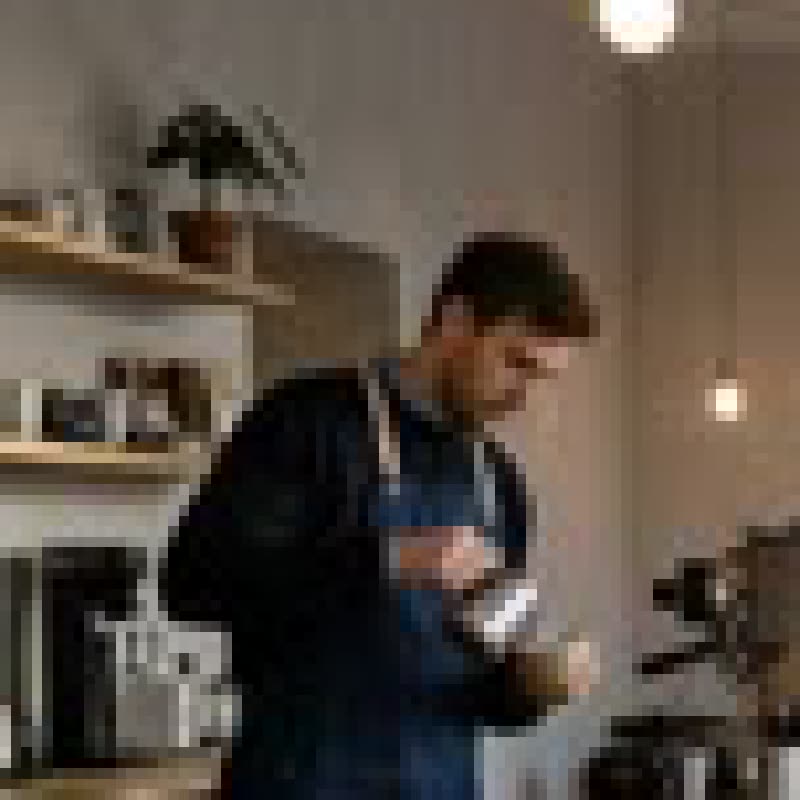 256 px original
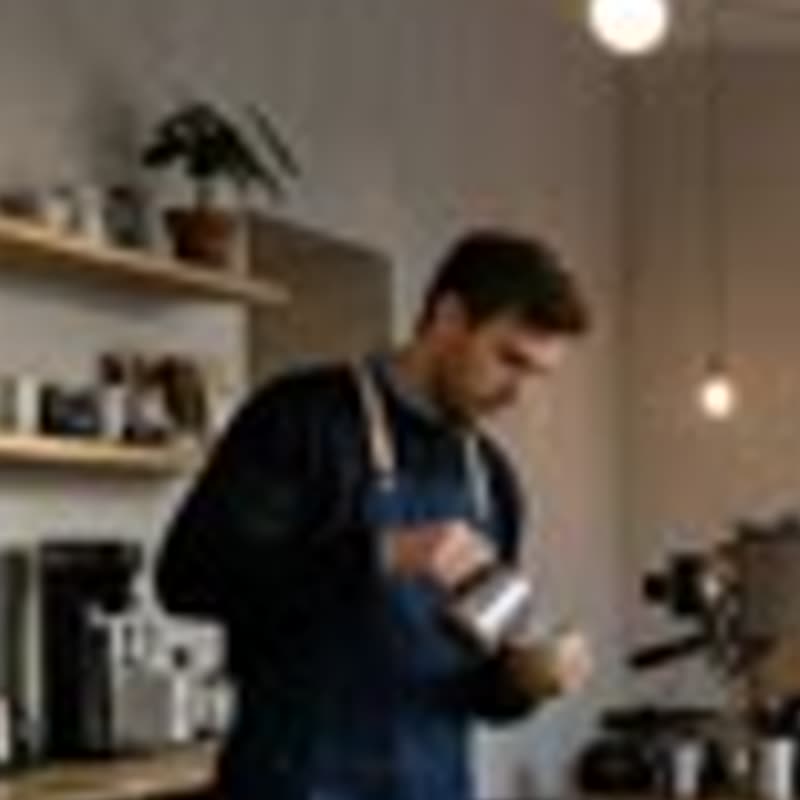 Plain zoom
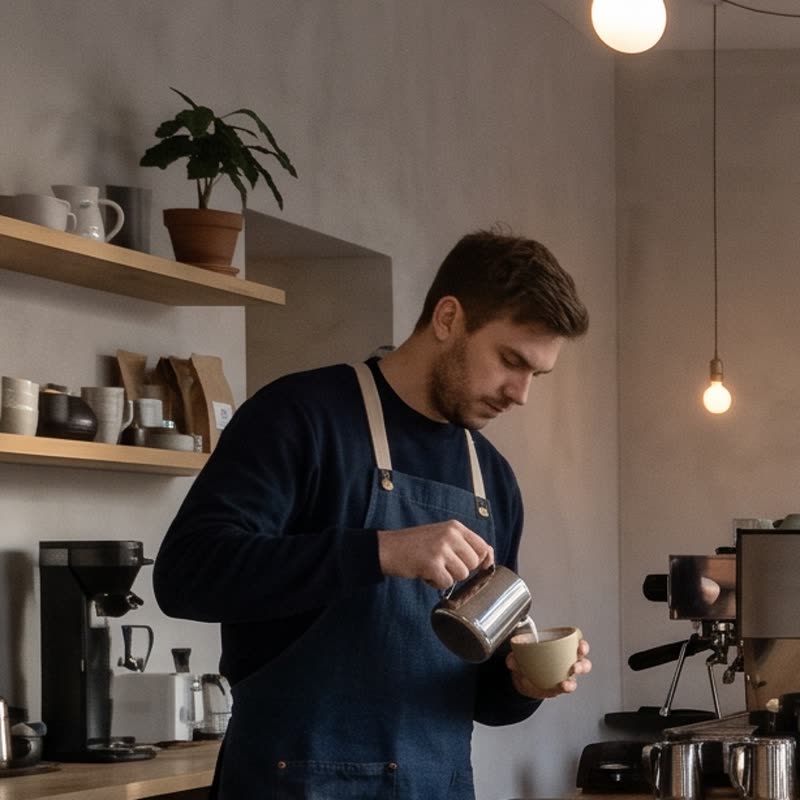 AI re-render
The same crop three ways. Left: a 256 px copy of a picture, enlarged. Middle: a plain bicubic zoom, soft but faithful. Right: Nano Banana 2.1 asked to upscale it to 2K: sharp, but it invented the face, the jug and the things on the shelf. Made for this guide on 31 October 2026. -
Work out the size you actually need
Upscale to the size the job needs, not the biggest number on offer. For Instagram, 1080 pixels wide is the target, so a 1024-pixel AI image needs little or nothing. For print, multiply each side in inches by 300 (300 pixels per inch is the usual print standard): an 8 × 10 inch print needs 2400 × 3000 pixels.
Bigger factors mean more invented pixels and more chances for something odd. A 2x upscale guesses three of every four pixels; a 4x guesses fifteen of every sixteen.
-
Faithful: for real people, products, logos and text
Use a non-generative or precision upscaler. Topaz Gigapixel's core models (Standard 2 for most images, High Fidelity 3 for good modern photos, Low Resolution 2 for small compressed ones, Text & Shapes for type and logos, Art & CGI for illustrations) run on your own computer and are not generative. Magnific Precision, Krea's Upscale V1 ("fast, neutral") and the free Real-ESRGAN do the same job.
These still guess the missing pixels, but conservatively: they sharpen what is there rather than inventing new things. Faces stay the same person and a label keeps its words.
-
Light touch: AI images that need believable texture
Use a generative upscaler on its lowest setting. Magnific Creative with Creativity at or below 0 and Resemblance above 0. Topaz Redefine in Realistic mode (Subtle). Midjourney's Upscale (Subtle). Leonardo's Universal Upscaler, whose docs suggest starting Creativity Strength, Detail Contrast and Similarity at 5.
In Stable Diffusion apps, render small, upscale with an ESRGAN model, then run a second pass at low denoising strength. The Automatic1111 wiki recommends 0.2 for its SD upscale script, and up to 0.4 "if you feel adventurous".
-
Creative: when you want new detail
For soft or small AI art that should come back richer, turn invention up. Magnific Creative with Creativity above 0 (it runs from -10 to 10), Topaz Redefine Creative (Low, Medium, High or Max), Topaz Bloom 2, Krea Enhance with higher Strength, or Midjourney's Upscale (Creative).
Write a short prompt describing what is in the image where the tool allows one (Magnific, Topaz Redefine, Krea). Topaz's docs ask for a description, not an instruction: "girl with red hair and blue eyes", not "make her hair red".
-
Run two versions and compare at 100%
Make the same upscale at two settings, one step apart, and look at both at 100% zoom beside the original. Check eyes, teeth, hands, hairlines, text, logos and any product detail. Upscalers often change these first.
Pick the version with the least invention that still looks sharp at your final size. If a face or label changed, drop to a more faithful lane rather than fixing it after.
Ask ClaudeHere are three images: the original, upscale A and upscale B. Compare A and B against the original. List anything that changed in either version: faces (eyes, teeth, expression), hands, text and logos (letter by letter), product details, and textures that look plastic or repeated. Tell me which version to keep for [USE] and whether I should go more faithful or more creative next time.
-
Save it for where it is going
For social, resize the result down to the platform size yourself (for example 1080 × 1350 for an Instagram portrait post) so the app does not compress it unpredictably. For print, keep the full-size file and save it as PNG or maximum-quality JPEG.
Keep the original next to the upscale. If a client asks for changes later, you start again from the source, not from guessed pixels.
Put it to work
-
Magnific (Creative and Precision)
Creative: scale 2x, 4x, 8x or 16x. Four sliders, each -10 to 10 with 0 as the default in Magnific's API docs: Creativity (how much it invents), HDR (definition and detail), Resemblance (how closely it follows the original) and Fractality (prompt strength and intricacy per pixel). An "optimised for" style (standard, soft portraits, hard portraits, art and illustration, nature and landscapes, films and photography, 3D renders and more), an engine (Automatic, Illusio, Sharpy, Sparkle) and an optional prompt.
Precision (V2): scale 2 to 16, Sharpen 0 to 100 (default 7), Smart grain 0 to 100 (default 7), Ultra detail 0 to 100 (default 30) and a flavour: sublime for art, photo, or photo denoiser for grainy low-light shots. Freepik relaunched under the Magnific name in April 2026, so Freepik's upscaler is this one.
-
Topaz Gigapixel
Core models, not generative and processed locally: Standard 2, High Fidelity 3, High Fidelity 2, Low Resolution 2, Text & Shapes, Art & CGI. Topaz says the amount of denoising and sharpening depends on the scale factor.
Generative models: Redefine Realistic (None or Subtle), Redefine Creative (Creativity Low, Medium, High or Max, plus a Texture slider), Recover 3 (Low, Medium or High; designed for images of 1 megapixel or less), Wonder 3 (Low, Medium or High) and Standard Max. Topaz suggests Redefine for AI-generated images and cloud rendering for images over 1 megapixel.
-
Krea Enhancer
Models and their maximum output: Krea Enhance (generative, 8K), Upscale V1 (fast and neutral, 8K), Bloom (creative, 10K), Topaz (22K), Topaz Generative (16K) and Krea Legacy (4K). Scale 1x, 2x, 4x or 8x.
Sliders: Strength (how much detail it invents), Resemblance (higher stays closer to the original), Clarity (pushes towards your prompt), Sharpness (a traditional sharpen) and, on Topaz Generative, Texture (low upscales existing detail, high generates new texture).
-
Ideogram, Midjourney, Leonardo, Photoshop
Ideogram's Upscale app (paid plan or credits): Topaz Bloom 2 for product shots and art, Topaz Standard 2 for photos, Topaz Redefine for soft or small images that need new detail, Topaz Text Refine to keep text crisp, Topaz Wonder 3.5, and Nano Banana Pro at 1K, 2K or 4K. Scale 2x, 4x or 8x, up to the equivalent of 8192 × 8192. Creativity runs 1 to 9 on Bloom 2 and Redefine.
Midjourney: Upscale (Subtle) stays close, Upscale (Creative) redraws more; both double a 1024-pixel image to 2048 and can use up to twice the GPU time of the original job. In V8.1 the --hd parameter makes 2K images at creation instead. Leonardo Universal Upscaler (Ultra): Artistic or Realistic style (Artistic for 2D art), Creativity Strength, Detail Contrast, Similarity; 20 megapixels maximum. Photoshop desktop: Image > Generative Upscale with Firefly Upscaler (up to 6144 × 6144) or Topaz Gigapixel (up to 56 megapixels, premium).
-
Stable Diffusion apps (Automatic1111, Forge, ComfyUI)
ESRGAN-family models (Real-ESRGAN x4plus for photos, x4plus anime 6B for anime) are pure upscalers: faithful lane, free, run locally. Real-ESRGAN's face option uses GFPGAN, which redraws faces: leave it off for real people you need to keep recognisable.
Hires. fix renders small, upscales, then adds detail in a second pass; denoising strength is your creativity slider. The A1111 SD upscale script works in tiles: 0.2 recommended, 0.4 at most, because higher values make each tile invent separately.
Copy-paste prompts
I'm going to upscale this image. It's [WHAT IT IS] and it will be used for [USE AND FINAL SIZE]. I have access to [YOUR TOOLS, e.g. Magnific, Krea, Topaz Gigapixel]. Tell me which tool and model to use, the scale factor, and the exact starting settings, and one setting to change if the first result is too soft or too invented. Explain in two sentences why.
This is a product photo for my online shop: [PRODUCT]. The label text and logo must stay exactly as they are and the colours must stay true. I need it at [SIZE] pixels. Recommend a faithful upscale (no invented detail), the tool and model, the scale, and whether to fix noise first. Then list the three details I should zoom in on to check nothing changed.
I made this image in [MODEL] at [CURRENT SIZE] and want to print it at [WIDTH × HEIGHT in cm or inches]. Work out the pixel size I need at 300 pixels per inch and the scale factor. Then suggest a two-step plan: which upscaler and setting for the first step, and whether a second step is worth it. It's AI art, so some new detail is fine, but the faces must not change.
Write a short description prompt (under 30 words) for a creative upscale of this image in [Magnific / Topaz Redefine / Krea]. Describe what is in the image and its materials and textures, as statements, not instructions ("weathered red brick wall, wet cobblestones", not "add brick"). No style words that would change the look. This is a scan of an old family photo, about [SIZE] pixels, with [SCRATCHES / NOISE / FADING]. I want it larger for a [PRINT SIZE] frame without changing anyone's face. Recommend the upscaler and model for old, low-quality photos, the scale, and the order to do repair and upscaling in. Warn me about any setting that would redraw faces.
Compare this original and this upscale at full size. List every change you can see in faces, hands, text, logos, edges and textures, most noticeable first. Mark each as acceptable or not acceptable for [USE]. If anything is not acceptable, tell me which lane to drop to: faithful, light touch or creative.
Tips
- Never use a creative upscaler on a photo of a real person you need to keep recognisable. Ideogram's upscale docs warn that higher face creativity can change a person's appearance, and the same goes for every creative upscaler.
- Upscale to the size the job needs. Going to 8x when you need 2x makes the model invent four times more pixels for nothing.
- Text and logos are where upscalers fail first. Use a text-aware model (Topaz Text & Shapes or Text Refine), or put the real text and logo back on afterwards.
- Change one setting at a time, one step apart. Creativity and resemblance pull against each other, so moving both at once tells you nothing.
- Generative upscalers give a slightly different result on every run (Midjourney's docs say so of its own). If one upscale is nearly right, run it again before you change any settings.
Claude skill
Do it in one go with the which-upscaler skill
Show Claude an image and say what it's for, and it decides how much the upscaler may change, works out the pixel size you need, picks the tool and model you have access to with exact starting settings, writes a description prompt if needed, and compares your before and after for changed faces, text and labels. Includes each tool's settings as of October 2026.
Download which-upscaler.zipIn Claude (web or desktop app)
- Open Settings → Capabilities and make sure code execution is on.
- Under Skills, choose Upload skill and pick the zip.
- Start a chat and describe what you are making. Claude uses the skill on its own when it fits.
In Claude Code
- Unzip it into
~/.claude/skills/(or.claude/skills/in a project). - Restart Claude Code and ask for the result. The skill loads when it fits.