Resources · Guide 03 · STUDIO
Turn a phone snap of your product into a studio shot, an orbit video and shop-ready mockups
Snap your product anywhere, let Claude describe it precisely, and get back a studio product shot, an 8-second cinematic orbit around it, and the same shot laid out as a store page, a feed ad, a Story ad and a launch email. This is the exact process behind the five-product reel and the single-product reels that follow one product from snap to shop.
What you'll make
- A precise product description you can reuse in every prompt
- A studio product shot (9:16) in the set and light you choose
- An 8-second orbit video of the product, made from that shot
- Four mockups from the same shot: online store page, Instagram feed ad, Story ad and launch email
What you need
Claude
Reads your photo, writes the product description, the studio prompt and the orbit prompt, then builds the four mockups
Z Image Turbo
Makes the studio shot (we used it through the Higgsfield API; any strong image model works)
Seedance 2.0
Turns the studio shot into an 8-second orbit (image-to-video, through Higgsfield)
Nano Banana (optional)
An image-editing model that can take your photo itself as a reference, if you want a closer match
Step by step
7 steps-
Snap the product
Any phone photo will do. The snaps in the reel were deliberately bad: a sneaker on a carpet under harsh flash, a perfume bottle on a messy desk under office light, a mug beside a dish rack in yellow kitchen light.
What matters is that the whole product is in frame and its details are visible: the colour of the heel tab, the shape of the cap, the strap. Claude can only describe what it can see.
-
Have Claude describe the product precisely
The studio shot is made from words, not from your photo, so the product matches only as well as the description does. One precise line does the work: material, colour, shape and the one or two details that make it yours.
In the reel the sneaker was always "a white leather low-top sneaker with a sage green heel tab and gum sole". That exact line went into the studio prompt and, shortened, into the orbit prompt.
Leave logos and brand names out. The models will not draw your logo faithfully, and video moderation blocks brand names.
Ask ClaudeHere is a phone photo of my product. Ignore the background and the light. Write one line that describes only the product so an image model could draw it: material, colour, shape and the one or two details that make it recognisable (stitching, cap, sole, strap, finish). No brand names, no logos, no adjectives like "premium". Under 25 words.
-
Choose a set and write the studio prompt
Pick a set that suits the product. The reel used five: floating above a seamless colour backdrop, a stone plinth with warm backlight through the glass, cream linen in morning window light, low-key light on black, and a sculptural white cube against a pale blue backdrop.
The studio prompt follows one order: what kind of photograph, the product line word for word, where it sits, the light, the shadow, the mood. Ask Claude for two or three set ideas and pick one.
Ask ClaudeSuggest three studio sets that suit this product, one line each. Then, for the one I pick, write an image prompt in this order: "Studio product photograph of [the product line, word for word], [where it sits or floats], [background], [key light and direction], [shadow], [mood or category of advertising], ultra sharp". Vertical 9:16 frame. No text, no logos.
-
Generate the studio shot
Run the prompt at 9:16. We used Z Image Turbo through the Higgsfield API (about $0.015 a picture), but Nano Banana, FLUX or Midjourney take the same prompt.
Make two or three and put each beside your snap. If a detail is wrong, tell Claude what is off and have it tighten the product line, then regenerate. The match is by description, not pixel for pixel: the reel's before and after pictures came from separate prompts.
If you need the product to match exactly, use an image-editing model such as Nano Banana and give it your photo as the reference along with the studio prompt.
-
Write the orbit
An orbit prompt says how far the camera travels, that it stays at the product's height, that the light moves across the surfaces, and that the product and set stay still. End with "no cuts".
Keep the product's design out of this prompt. An orbit around a watch was first blocked by moderation for "potential copyright restrictions". Calling it "the product on the wrist" and describing only the move got through. Blocked requests are not charged.
Ask ClaudeWrite an 8-second image-to-video prompt for a slow orbit around this studio shot. Use this pattern: "Slow, smooth cinematic orbit: the camera circles about 120 degrees around the [short product name] [on or above the set] at its own height while the studio light glides across its surfaces and reflections travel over it. The [short product name] stays perfectly still and centred, the set and backdrop stay the same, nothing else moves. Steady gimbal move, no cuts, no zoom jumps." Keep brand names and design details out.
-
Animate with Seedance 2.0
Give Seedance 2.0 (image-to-video) the studio shot and the orbit prompt at 8 seconds, 720p. Through the Higgsfield API that is about $0.30 a second, so roughly $2.40. Clips took between two and four minutes.
The still becomes the first frame, so the product carries over. A 4-second orbit costs about $1.20 if you want to test the move first.
-
Put it to work
Give Claude the studio shot, the orbit clip, the product's name, price, sizes or options and a one-line tagline. It builds all four mockups on one HTML page (an artifact in the Claude app) so you can see the shot in context before you use it anywhere.
The page is a preview, not a live shop or ad. To use the assets for real, take the same picture, clip and words into your shop, your ad tool and your email tool.
Ask ClaudeBuild one HTML page with four phone-sized mockups using my studio shot and orbit clip: 1) an online store product page (brand name, product name, price, option buttons, an Add to bag button), 2) an Instagram feed ad (my handle, Sponsored, the shot, a coloured "Shop now" band, a short caption), 3) a Story ad (the orbit clip full screen, a short headline, a Shop now button), 4) a launch email (subject line, hero image, "Meet the [product]", the tagline, a Shop now button with the price). Use an accent colour taken from the shot. Product: [name]. Price: [price]. Options: [sizes or colours]. Tagline: [one line]. Do not invent reviews, ratings or delivery promises.
Put it to work
-
Online store product page
A top bar with the brand name and a bag icon, the studio shot as the hero, then "New in", the product name and price, option buttons (sizes, volumes or colours) and a full-width Add to bag button in the accent colour.
In the reel the button turns to "Added to bag" when clicked. Add a rating or delivery line only if it is true for your shop.
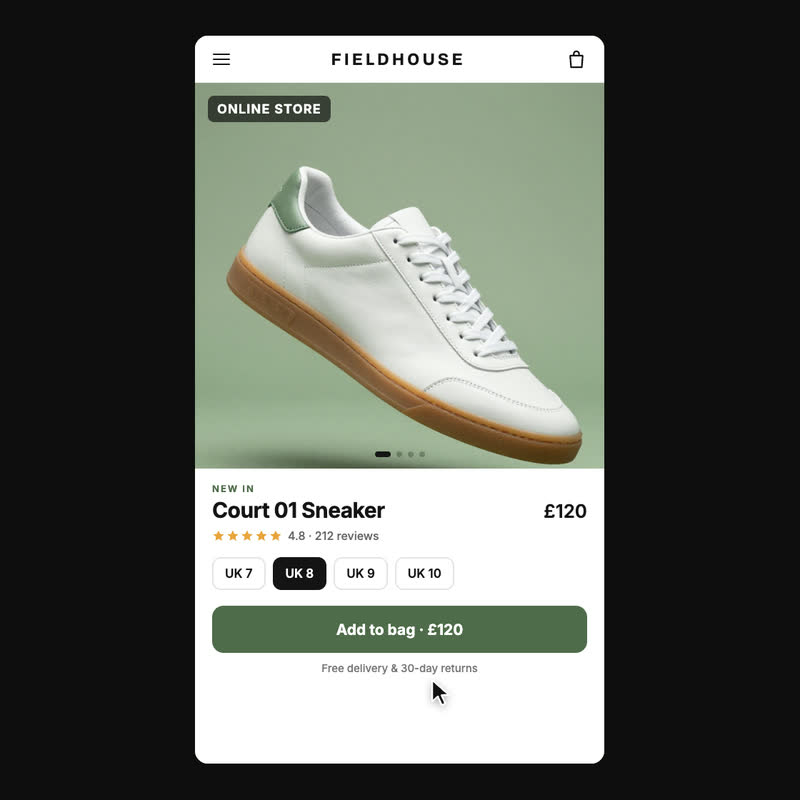 Sneaker
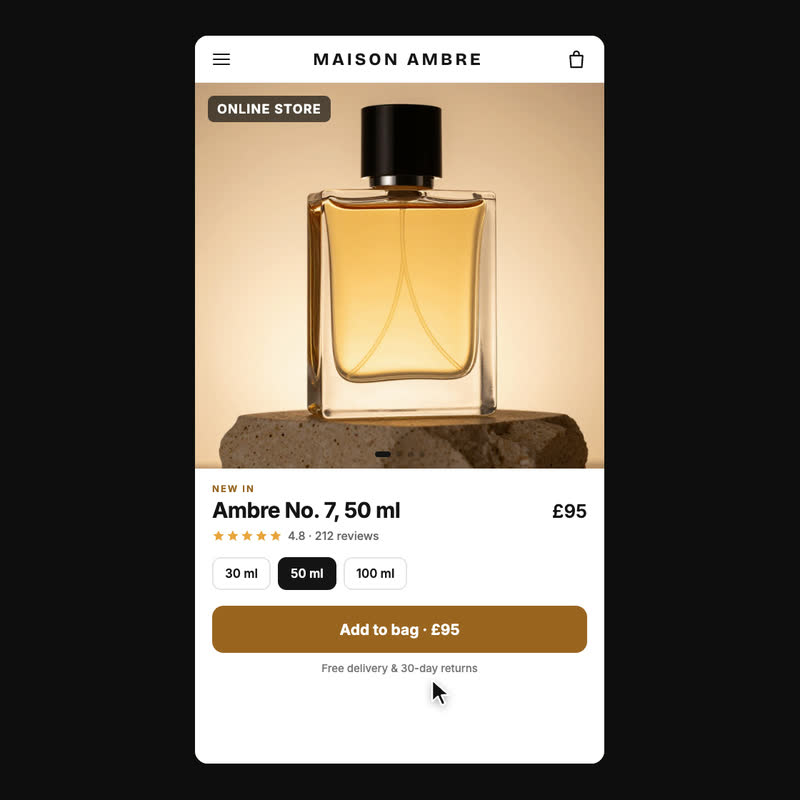 Perfume
The product page from the sneaker and perfume versions of the reel, built around each studio shot. -
Instagram feed ad
Your handle and "Sponsored" above the shot, a coloured band under it that says "Shop now", the like, comment, share and save row, then a caption made from the tagline and price.
The reel cropped the 9:16 shot into the feed frame. If the crop cuts the product, generate a square or 4:5 version from the same studio prompt, if your image model offers that ratio.
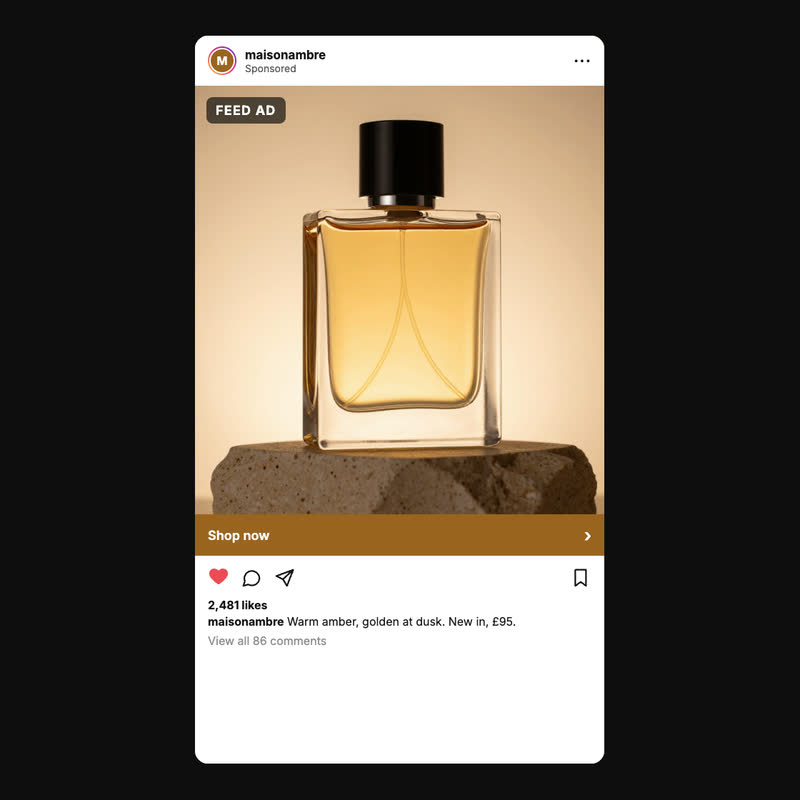 Perfume
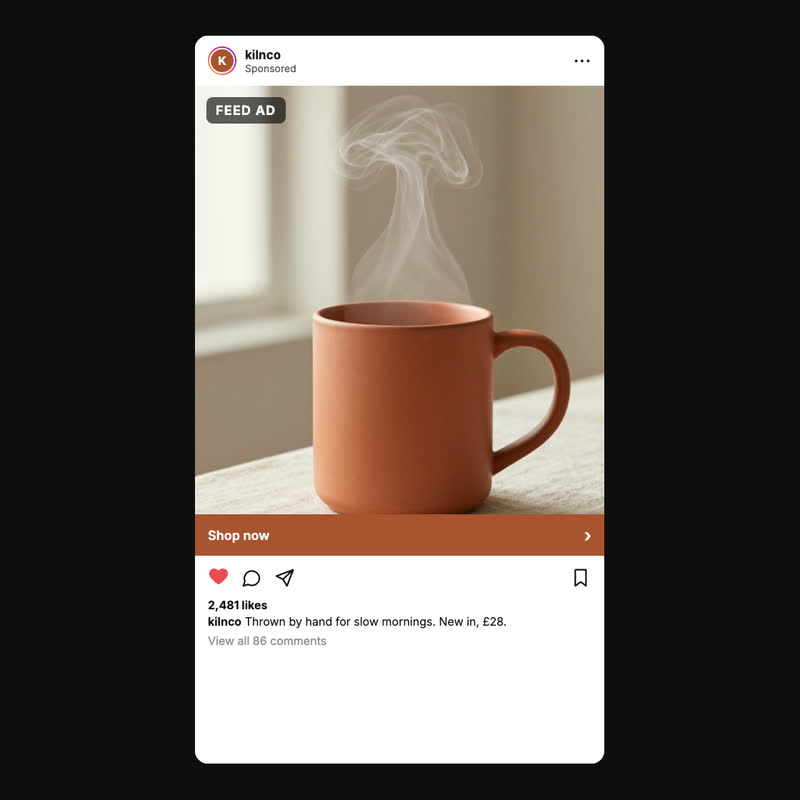 Mug
The feed ad from the perfume and mug versions of the reel. -
Story ad
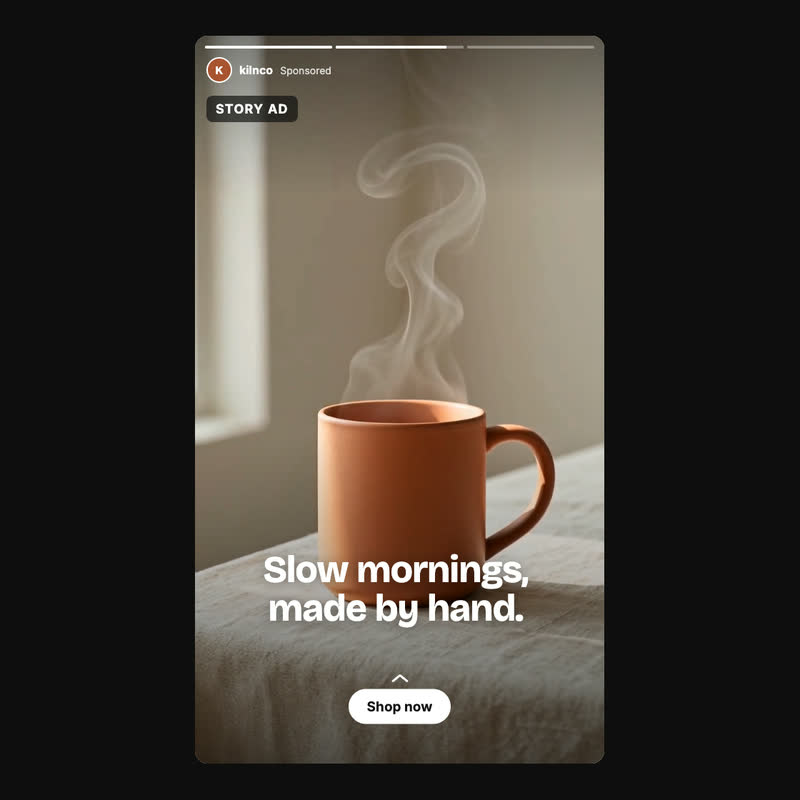
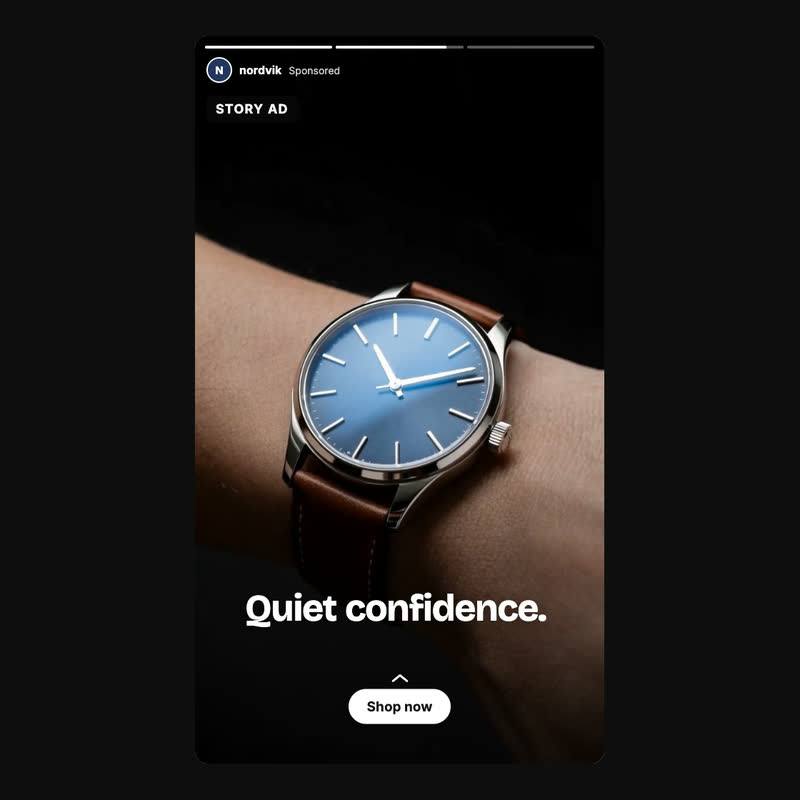
The 8-second orbit plays full screen, which suits the 9:16 Story format. Over it: the progress bars, your handle with "Sponsored", a short headline in large type and a white "Shop now" button at the bottom.
The reel's headlines were three or four words, like "Made for every day." or "Smell like golden hour."
 Mug
 Watch
A frame of the Story ad from the mug and watch versions of the reel. -
Launch email
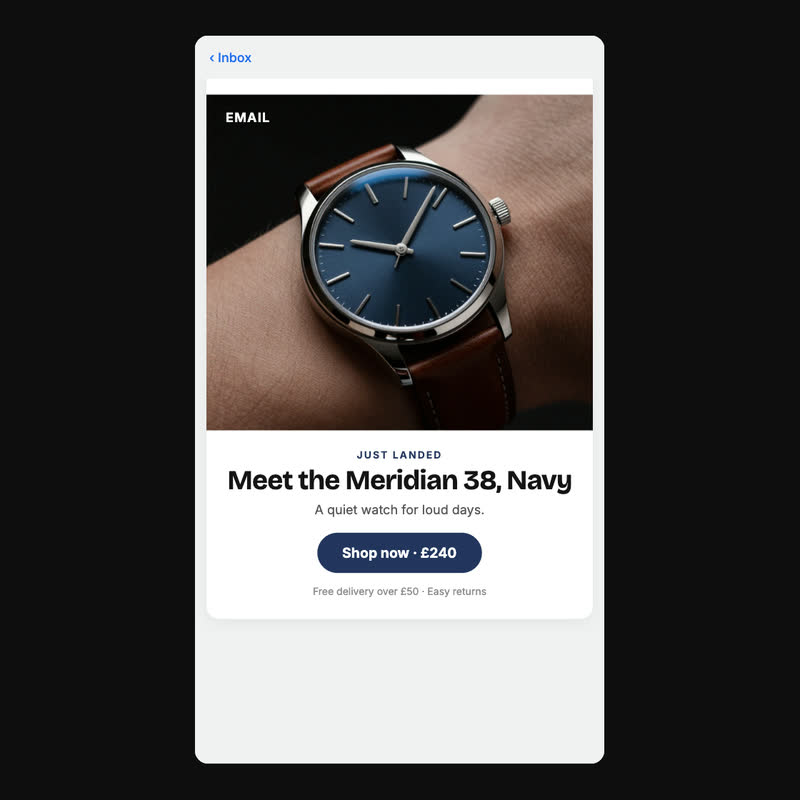
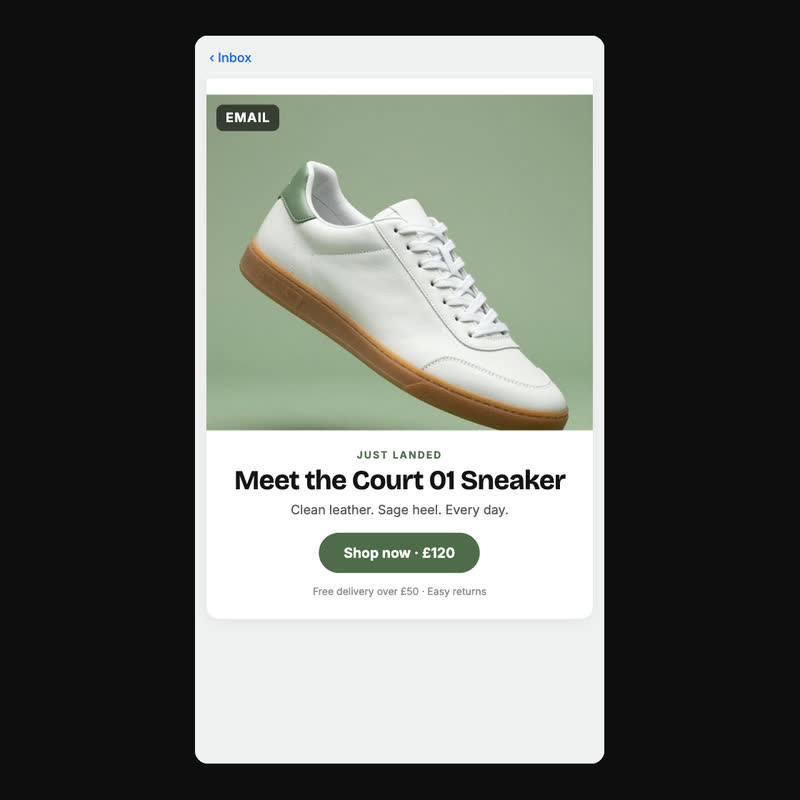
Subject line "New in: the [product]", the brand name centred, the studio shot as the hero, then "Just landed", "Meet the [product]", the tagline and a Shop now button with the price.
 Watch
 Sneaker
The launch email from the watch and sneaker versions of the reel.
The prompts behind the reel
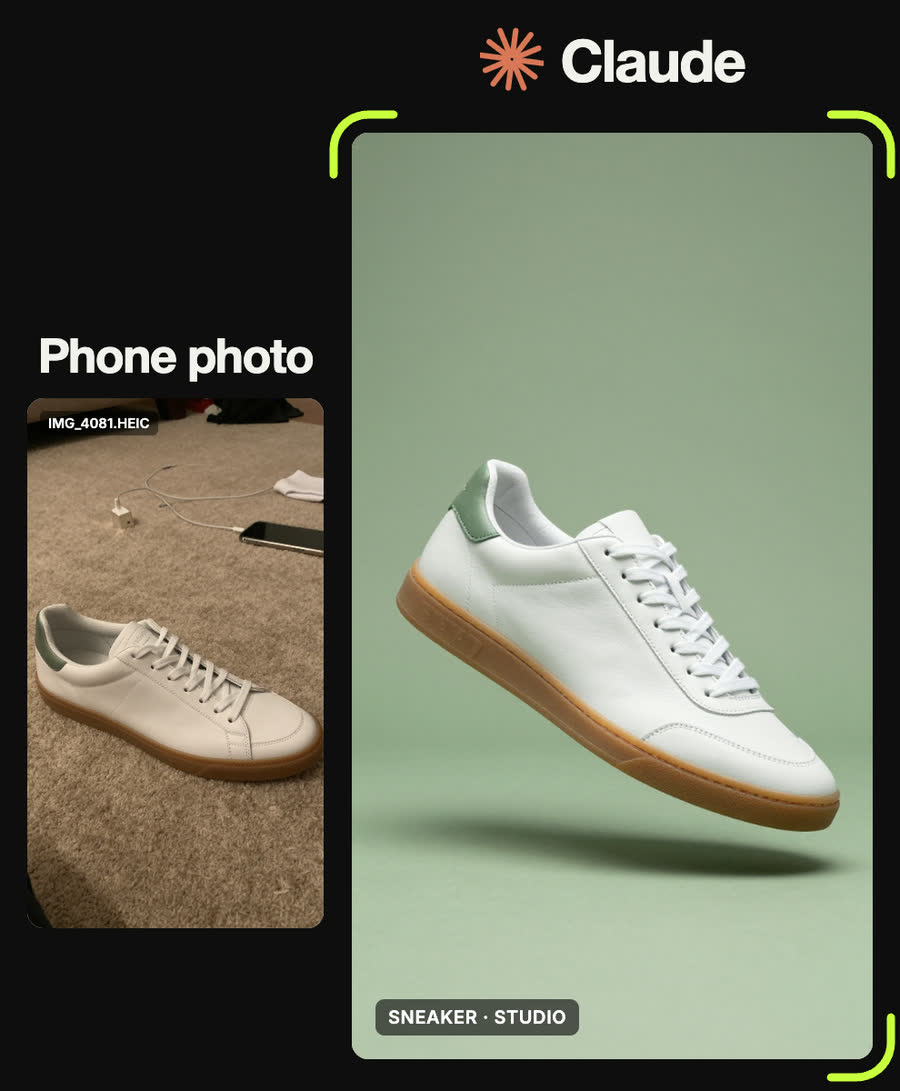
Professional studio product photograph of a white leather low-top sneaker with a sage green heel tab and gum sole, floating at a slight angle above a seamless sage green background, soft diffused key light, crisp contact shadow below, commercial advertising, ultra sharp
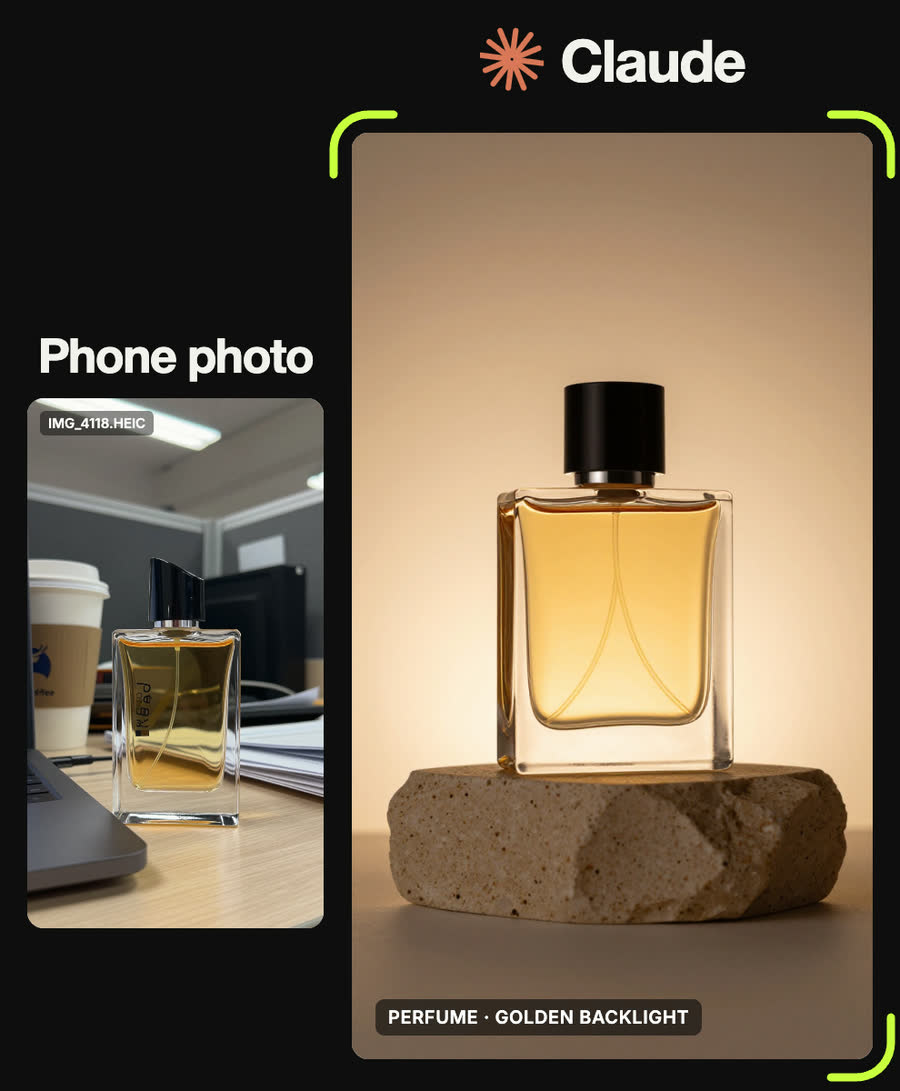
Luxury studio product photograph of a square glass perfume bottle with amber liquid and a black cap standing on a travertine stone plinth, warm golden backlight glowing through the liquid, soft shadows, warm beige backdrop, high-end fragrance advertising
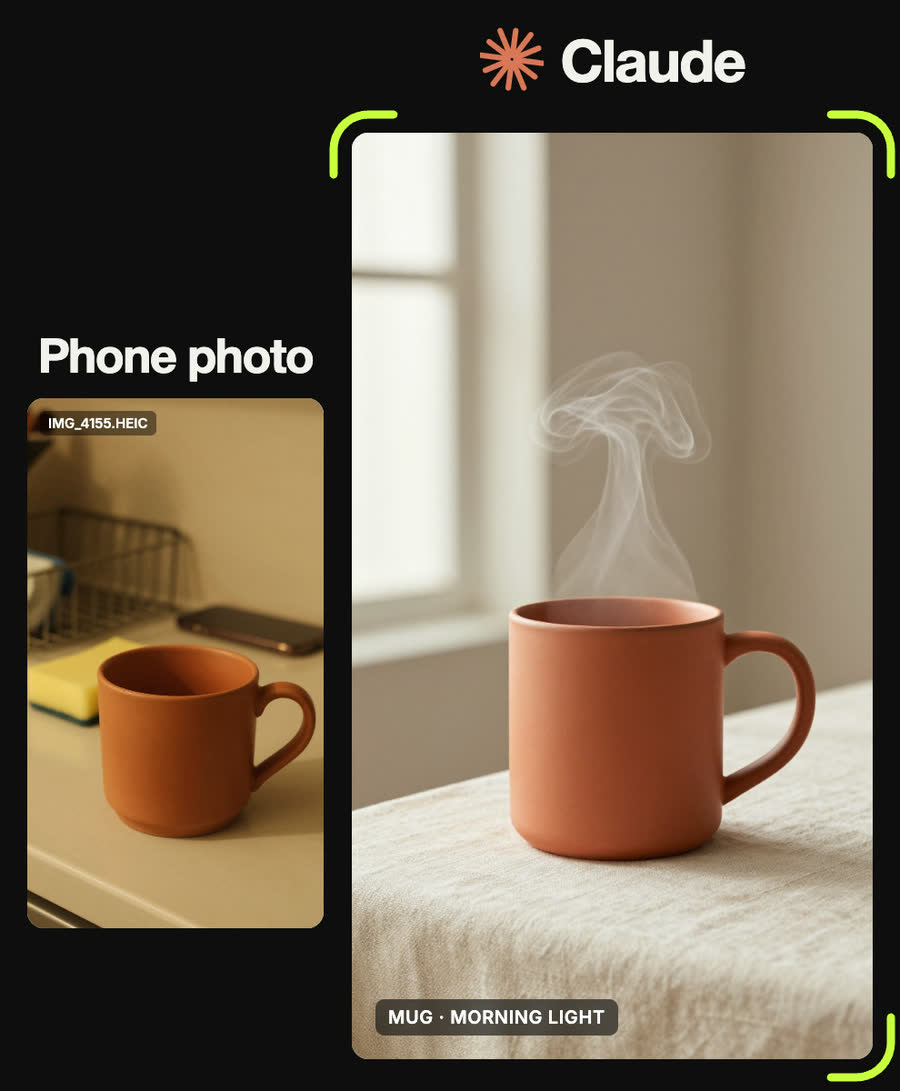
Studio product photograph of a matte terracotta ceramic mug with a wisp of steam rising, standing on cream linen, soft morning window light from the left, minimal props, warm editorial still life, shallow depth of field
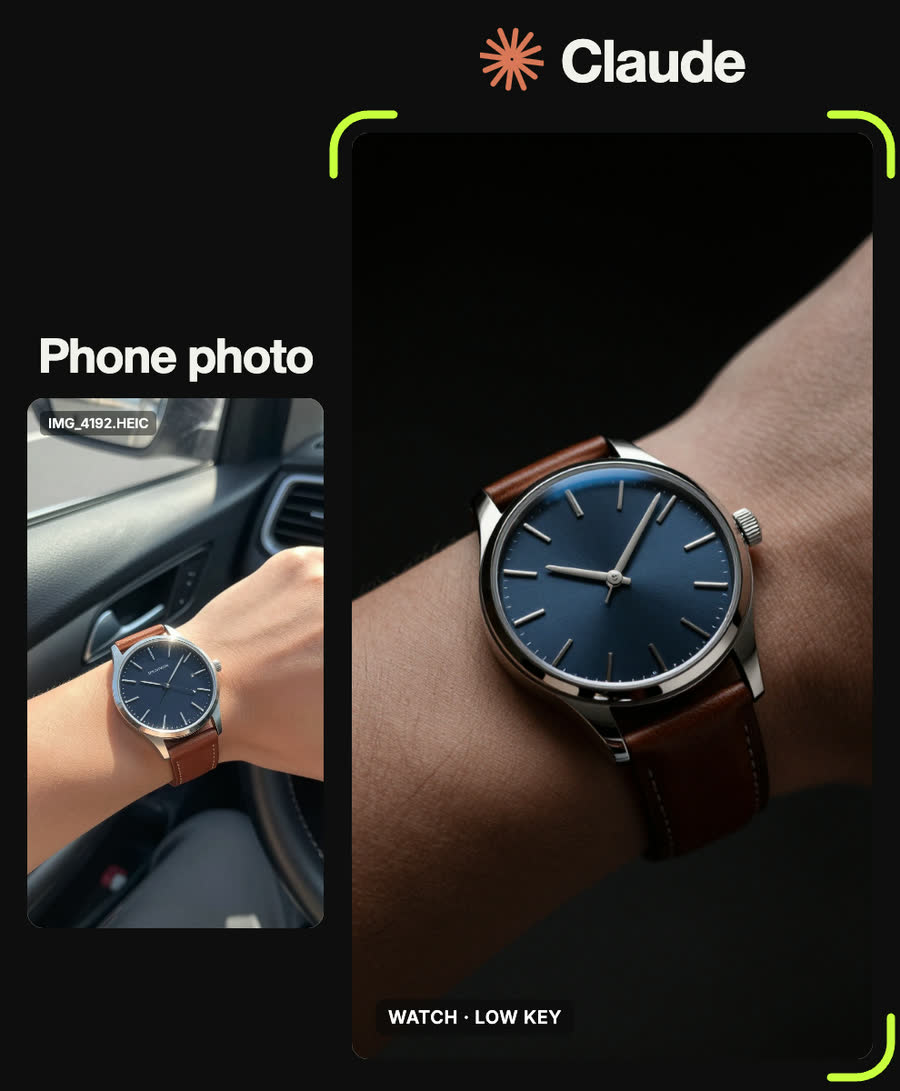
Studio product photograph of a minimalist steel watch with a navy dial and brown leather strap on a wrist, dramatic low-key lighting, black background, precise specular highlights on the steel case, luxury watch advertising, macro detail
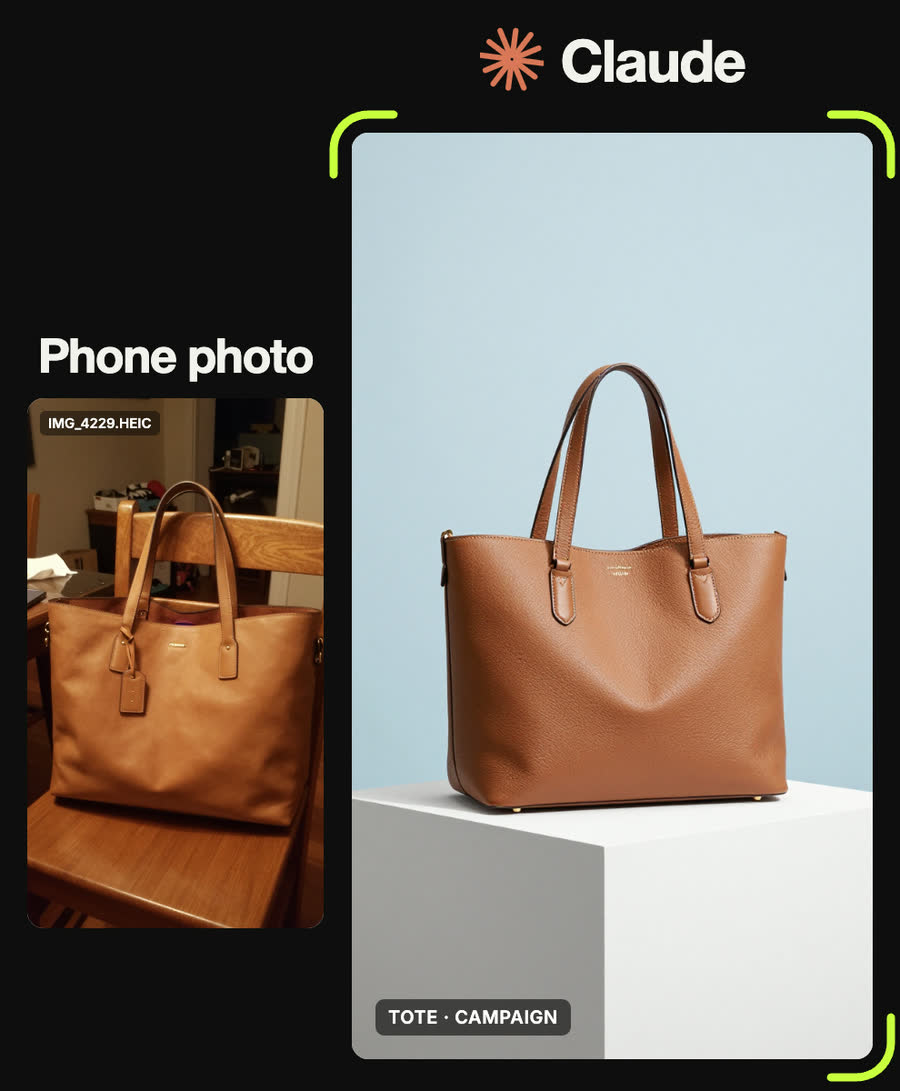
Studio product photograph of a tan leather tote bag standing on a sculptural white cube, soft daylight, pale blue seamless backdrop, crisp shadow, luxury fashion accessory campaign, ultra sharp detail
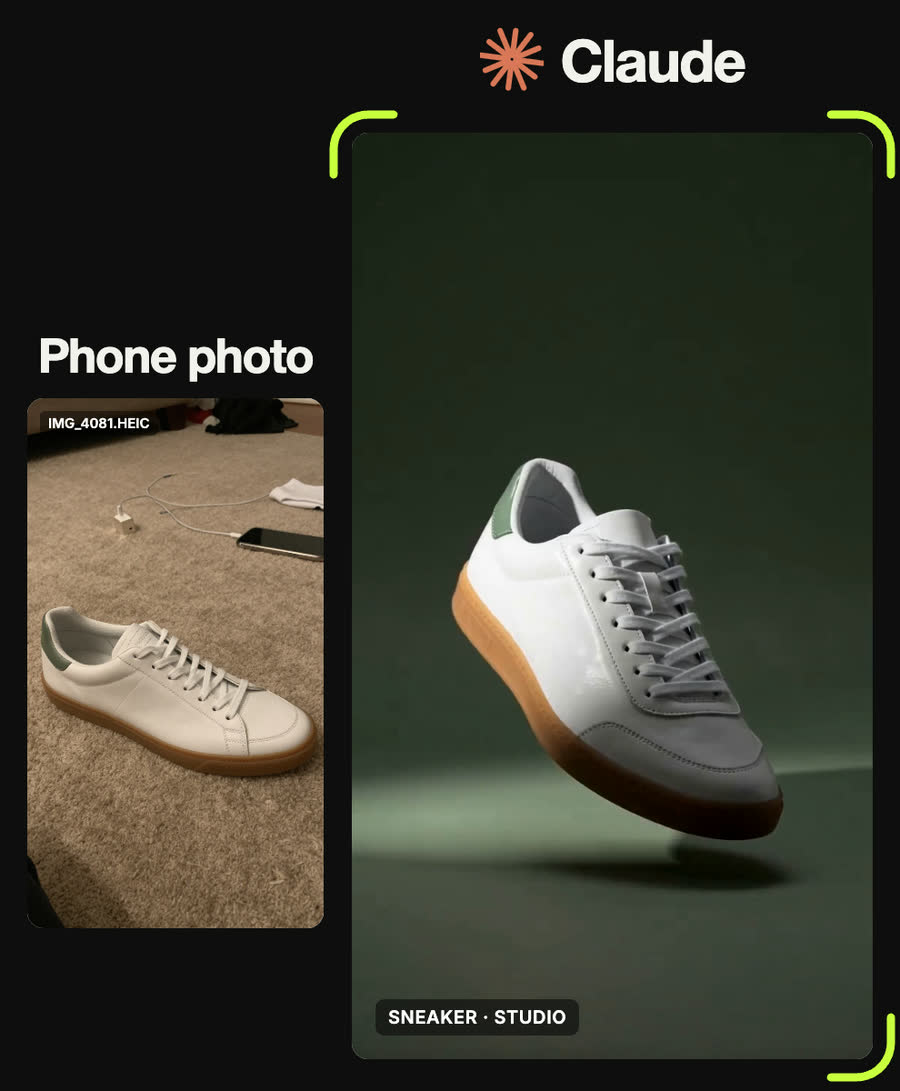
Slow, smooth cinematic orbit: the camera circles about 120 degrees around the white leather sneaker with the sage green heel tab, floating above the sage backdrop at its own height while the studio light glides across its surfaces and reflections travel over it. The sneaker stays perfectly still and centred, the set and backdrop stay the same, nothing else moves. Steady gimbal move, no cuts, no zoom jumps.
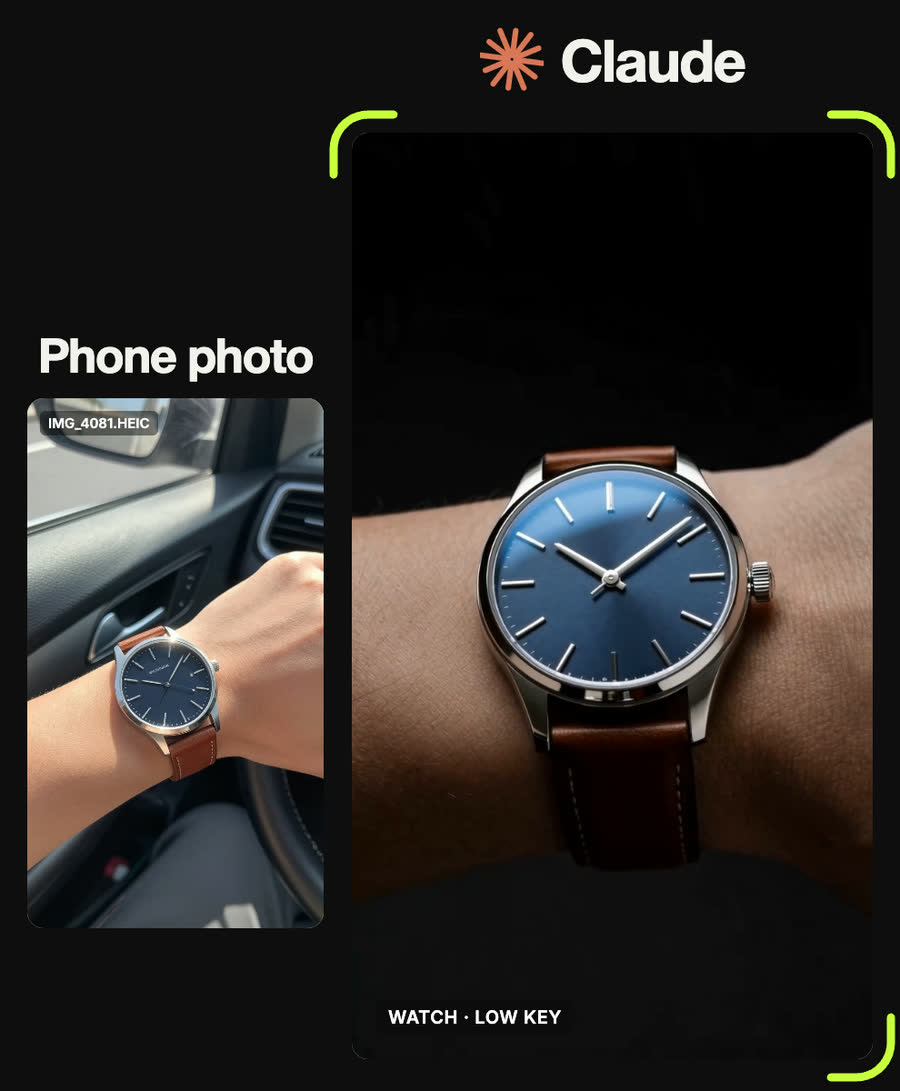
Slow, smooth cinematic orbit around the product on the wrist: the camera circles gently at the same height while soft studio light glides across the metal and glass. The product and the background stay still and unchanged. Steady gimbal move, no cuts.
Tips
- Repeat the product line word for word in the studio prompt. Rewording it is how a gum sole turns into a white one.
- Keep logos and brand names out of every prompt. Add your real logo afterwards in your design tool if you need it.
- If an orbit is blocked, strip the product's design out of the prompt and describe only the camera move and the light.
- Fix the still before you animate. A wrong detail costs $0.015 to fix in the picture and $2.40 in the video.
- Do not put ratings, review counts or delivery promises on the mockups unless they are true for your shop.
Claude skill
Do it in one go with the phone-snap-to-studio-shot skill
Give Claude a phone photo of your product and it returns a precise product description, a studio prompt, an orbit prompt and four shop mockups (store page, feed ad, Story ad, launch email) on one page. In Claude Code with a Higgsfield key it can also generate the shot and the orbit for you.
Download phone-snap-to-studio-shot.zipIn Claude (web or desktop app)
- Open Settings → Capabilities and make sure code execution is on.
- Under Skills, choose Upload skill and pick the zip.
- Start a chat, attach a photo of your input, and ask for the result. Claude uses the skill on its own.
In Claude Code
- Unzip it into
~/.claude/skills/(or.claude/skills/in a project). - Restart Claude Code and ask for the result. The skill loads when it fits.