Resources · Guide 14 · SEED
Lock the seed, change one word, and see exactly what that word does
Most AI image models start from random static, and the seed is the number that makes that static. Use the same seed, prompt and settings and you get the same image back, or very close to it. This guide shows where to find and lock the seed in each tool, what else you have to keep still, and how to run a clean one-word test.
How it works
The seed sets the static. Same seed, prompt and settings: the same picture back.
Same seed, one word changed: the layout stays, only what that word controls moves.
New seed: new static, so a whole new picture.
What you'll make
- Where the seed lives in Midjourney, Stable Diffusion (Automatic1111 and Forge), ComfyUI, Ideogram, Flux and the main APIs, as of October 2026
- Which tools have no seed to lock (ChatGPT images, Nano Banana) and what to do there instead
- The list of settings you must freeze alongside the seed, or the test means nothing
- A one-word test method you can reuse for style words, lighting, lenses and brand colours
What you need
Midjourney
--seed with a whole number from 0 to 4294967295; copy a past image's seed from the web app
Automatic1111 / Forge
The Seed field under the prompt, with a dice button (random) and a recycle button (reuse last)
ComfyUI
The seed on the KSampler node, with control after generate set to fixed
Ideogram
The Seed field under Advanced settings
Flux (BFL API, fal, Replicate)
A seed parameter on every endpoint
Claude
Plans the test, writes the prompt variants and keeps the log
Step by step
8 steps-
Start from an image you like
A seed test needs a base: one image whose layout you want to keep while you try changes. Make a few images with your normal prompt and pick the one to build on.
Write down everything that made it: the prompt word for word, the model and version, the size or aspect ratio, and any settings you touched (steps, guidance, sampler, speed mode). You will need all of it, not just the seed.
-
Find that image's seed
Midjourney (web): open the image from Create or Organize, use the options button next to the prompt, choose Copy, then Seed. The number goes to your clipboard.
Automatic1111 and Forge: the seed is in the generation info under the image. The recycle button next to the Seed field copies it back in for you (its tooltip: "Reuse seed from last generation").
ComfyUI: the seed is on the KSampler node that made the image. Ideogram: open the image and read the Seed Number in the details panel (on the right on desktop, below the image on mobile).
Flux and other APIs: the response, or the request you sent, carries the seed. Save it with the image.
-
Lock it in your tool
Midjourney: add --seed 1234 (your number) to the end of the prompt. Any whole number from 0 to 4294967295 works. Midjourney says seeds are about 99% identical in V8.x. Don't use Turbo mode for seed tests: Midjourney says seed locking is not reliable there.
Automatic1111 and Forge: type the number into Seed. The dice button sets it to -1, which means a new random seed every time, so don't press it during a test.
ComfyUI: set the KSampler seed and change control after generate to fixed. On increment, decrement or randomize, the seed changes after every run without you noticing.
Ideogram: open Advanced settings and type the number into Seed (up to 2147483647). The number stays until you clear it; an empty field reads Random.
Flux: send seed in the request. BFL's FLUX.2 endpoints, fal's flux/dev and Replicate's flux-dev all take one. fal's own description: the same seed and prompt on the same model version gives the same image every time.
-
Freeze everything else
The seed only fixes the starting static. Anything else that changes, changes the picture. Keep these still: the model and its version, the width and height (or aspect ratio), steps, guidance or CFG, sampler and scheduler, and any speed or quality mode.
Size matters more than people expect. In Stable Diffusion the static is made at one eighth of your width and height, so a new size means a different-shaped block of static, and a whole new picture. Midjourney's own docs say the prompt, version and small setting changes can all override the seed.
Ideogram 3.0 adds one more: the same seed at a different Render Speed won't give the same image.
-
Change one thing, and only one
Now make a copy of your prompt and change a single word or phrase: "soft window light" to "hard flash", "35mm" to "85mm", "matte" to "glossy". Run it with the locked seed. Whatever moved is what that word does.
Change two things at once and you can't tell which one did it. If a change does nothing, the model may be ignoring the word, or another word in the prompt is already doing the same job.
Ask ClaudeI want to test what one change does to an AI image. Base prompt: [PASTE PROMPT]. Tool and model: [e.g. Midjourney V8.2 / FLUX.2 flex / SDXL in Forge]. Seed: [NUMBER]. What I want to test: [e.g. lighting words]. Write 4 versions of the prompt that each change only that one thing and keep every other word identical, show the changed words in bold, and give me a short table I can fill in with what changed in each picture. Remind me which settings I must keep the same in this tool.
-
Compare side by side and keep a log
Put the base and the variants next to each other at the same size. Look at what moved: the light, the colour, the camera, the composition, or nothing.
Keep a short log: seed, the changed words, what happened, keep or drop. After a few tests you have your own tested vocabulary for your style, which is worth more than any prompt list.
-
Go back to random when you want variety
Seeds are for testing and for coming back to an image. When you want new ideas, go back to a random seed (Midjourney: drop --seed; Automatic1111: press the dice; ComfyUI: set randomize).
For something in between, Automatic1111 and Forge have a gentler option: tick Extra next to the seed, set a Variation seed and a small Variation strength, and you get close cousins of your image instead of strangers.
In a batch, Automatic1111 gives each image the next seed (1234, 1235, 1236), so to rebuild image three of a batch use the seed shown for that image.
-
Know what a seed can't do
A seed is not a style or character lock. Midjourney says so plainly: it only shapes the starting noise, and it recommends style references, omni references and personalisation for consistency. Change the prompt a lot and the seed's layout goes with it.
Treat a seed as reliable within one model version and one set of settings. After a model update, or in Midjourney after a break, assume it may not reproduce the same image.
Put it to work
-
Tools with no seed to lock
ChatGPT images and the OpenAI Image API have no seed setting (the API's parameter list has none as of October 2026). Google's Nano Banana guide doesn't document one either. Kling's current 3.0 video API has no seed field.
In these tools, keep the image you like and edit it instead of regenerating: in the same chat, ask for the one change and say what must stay the same. You lose the clean test, but you keep the picture.
Edit instead of rerollKeep this image exactly as it is: same composition, framing, subject, colours and background. Change only this: [ONE CHANGE]. Do not add, remove or move anything else.
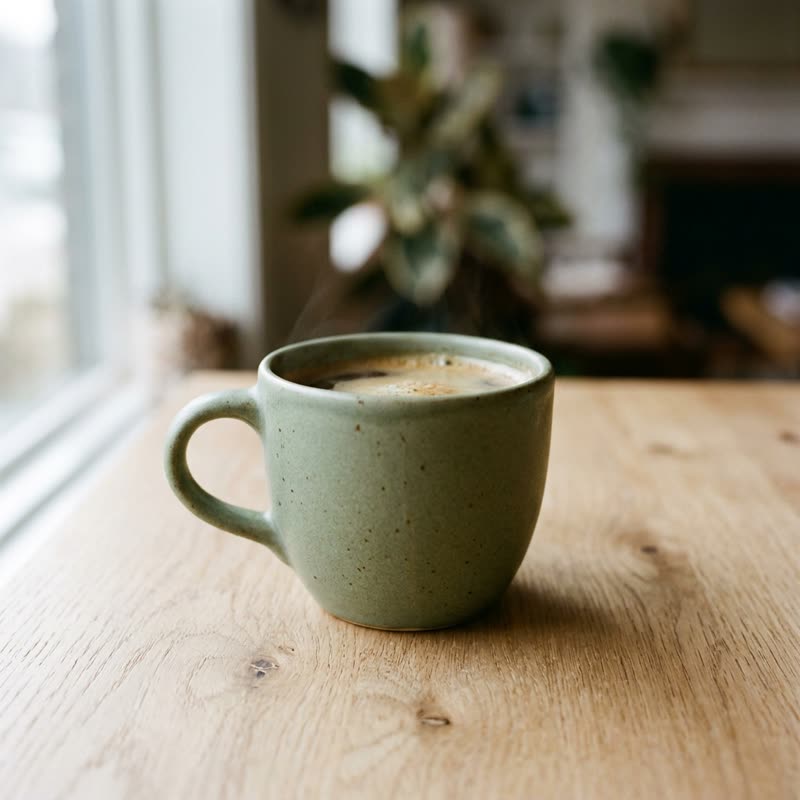 Run 1
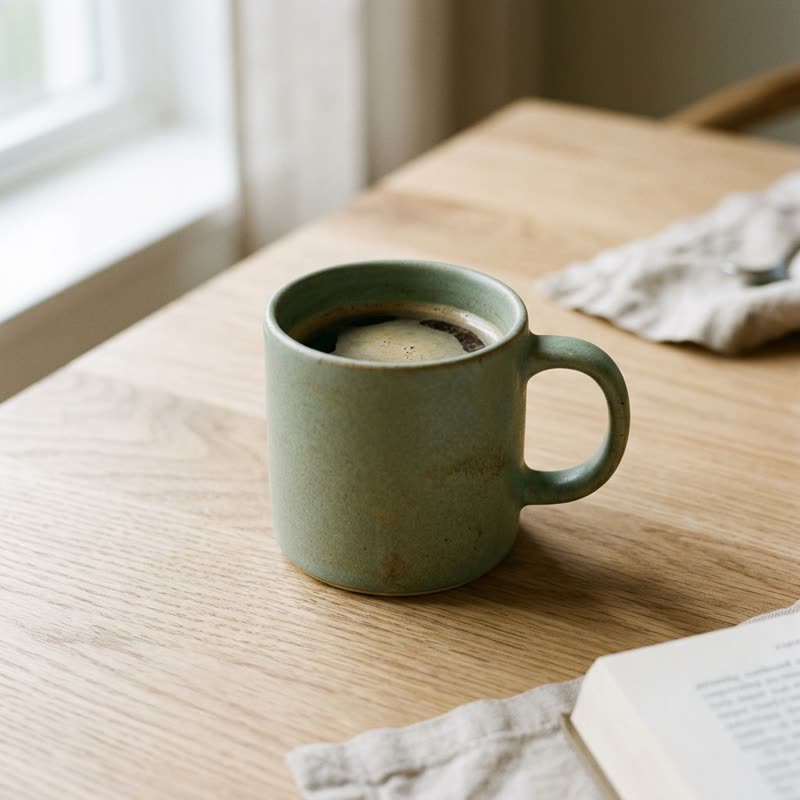 Run 2
The same prompt run twice in Nano Banana 2.1, which has no seed to lock: same idea, a different picture every time. Made for this guide on 31 October 2026. -
Seeds in video
Some video APIs take a seed: Runway's API accepts 0 to 4294967295 on its own models. Its docs promise similar results for an identical request, not identical ones, and most video apps don't show a seed at all.
For video, the better lock is a start frame: fix the still with a seed first, then animate that exact image.
-
Seeds through the APIs
Stability AI's SD 3.5 API: seed from 0 to 4294967294, where 0 (or leaving it out) means random. Adobe Firefly's API: a seeds array; Adobe says the same seed, prompt and presets give the same image. Leonardo's API: seed from 0 to 2147483637 on FLUX Dev.
Always save the seed the response returns. If you didn't send one, that number is the only way back to the image.
Copy-paste prompts
Base prompt: "studio photo of a matte terracotta mug on cream linen, soft window light from the left, shallow depth of field". Tool: Midjourney, seed 48213. Write 4 variants that change only the lighting phrase (keep every other word identical), add --seed 48213 to each, and give me a 4-row table to note what changed.
I keep adding "cinematic" to my prompts and I'm not sure it does anything. My prompt: [PROMPT]. Tool: [TOOL]. Seed: [NUMBER]. Give me the prompt with and without "cinematic", plus a version with a specific replacement (a lens, a light setup and a colour grade), so I can run all three on the same seed and see which words earn their place.
I'm in ComfyUI with a basic text-to-image workflow (checkpoint, two CLIP Text Encode nodes, KSampler, VAE Decode). Walk me through locking it for a seed test: which values on which nodes I must keep fixed, what to set control after generate to, and how to run 4 prompt variants without anything else changing. Keep it to a short checklist.
I made a batch of 4 in Automatic1111 with seed 1234 and I like the third image. Tell me exactly which seed and settings to enter to get that one image back on its own, and what would stop it matching.
My client likes this composition: [PROMPT], seed [NUMBER] in [TOOL]. They want to see it in three brand colourways: [COLOUR 1], [COLOUR 2], [COLOUR 3]. Write the three prompts changing only the colour words, keep the seed and settings identical, and tell me what I should expect to stay the same and what might still shift.
Tips
- Write the seed in the file name (mug-48213.png). It is the quickest way to find it again.
- If a locked seed suddenly gives a different picture, check the size, the model version and the speed mode before anything else.
- Test words in your real prompt, not a toy prompt. A word's effect depends on what is around it.
- One change per image. If you want to test two words, that's two separate tests.
- Don't use a seed to keep a character or brand consistent across different prompts. Use the tool's reference features for that.
- Keep the seeds of images a client approved. They let you come back for a small change without starting over.
Claude skill
Do it in one go with the lock-the-seed skill
Tell Claude what you want to test and in which tool. It tells you exactly where to find and lock the seed, lists what else must stay fixed, writes the one-change prompt variants, and keeps a test log you can read back later. Includes a per-tool seed reference (Midjourney, Automatic1111, Forge, ComfyUI, Ideogram, Flux, the main APIs, and the tools with no seed).
Download lock-the-seed.zipIn Claude (web or desktop app)
- Open Settings → Capabilities and make sure code execution is on.
- Under Skills, choose Upload skill and pick the zip.
- Start a chat and describe what you are making. Claude uses the skill on its own when it fits.
In Claude Code
- Unzip it into
~/.claude/skills/(or.claude/skills/in a project). - Restart Claude Code and ask for the result. The skill loads when it fits.