Resources · Guide 16 · LATENT
How to fix mushy, misspelt text in AI images
Most image models don't paint your pixels. An encoder squeezes the picture down (in Stable Diffusion, eight times smaller on each side), the model works on that small version, and a decoder blows it back up. Small text and faces far away get lost in the squeeze. This guide shows how to fix it: pick a model that handles text, write the words so it can, give the letters more pixels, repair just the text area, and know when to add the words yourself.
How it works
The encoder squeezes your picture 8× on each side. The model does all its work on the small version (64 times fewer cells), then the decoder blows it back up.
A letter 16 pixels tall is only 2 cells tall in the small version. Two cells can't hold the shape of a letter, so small text (and faces far away) come back blurred or misspelt.
What you'll make
- A quick test that tells you whether your problem is size (the squeeze) or spelling (the model)
- How to write text into a prompt for Midjourney, Ideogram, FLUX.2, ChatGPT images and Nano Banana, from each tool's own guidance
- Ways to give text more pixels: bigger in frame, HD and 2K/4K outputs, Hires. fix
- How to repair only the text or a face: inpainting at full resolution, Ideogram's Studio tools, Midjourney's Editor
- When to stop prompting and add real text on top, and a Claude-built overlay to do it
What you need
Ideogram
Built for text in images; Studio tools fix or retype words
ChatGPT images / Nano Banana
Strong text rendering, larger output sizes
FLUX.2
Quoted text with placement, style and hex colour
Midjourney
Text in double quotes; HD images; Editor to repair
Automatic1111 / Forge
Hires. fix, inpaint Only masked, ADetailer for faces
Claude
Diagnoses the problem, rewrites the prompt, builds a real text overlay
Step by step
7 steps-
Work out which problem you have
Look at the text at full size. If big headline letters are clean but small text is smudged, that's the squeeze: the letters were too small to survive being shrunk eight times. If even large letters are misspelt or invented, that's the model: it doesn't know how to spell what you asked for.
A quick sum shows why size matters. A 1024-pixel-wide image becomes a 128-wide grid in Stable Diffusion's latent space. A line of text 16 pixels tall is only 2 cells tall in that grid. There's no room for the shape of an "e" in two cells.
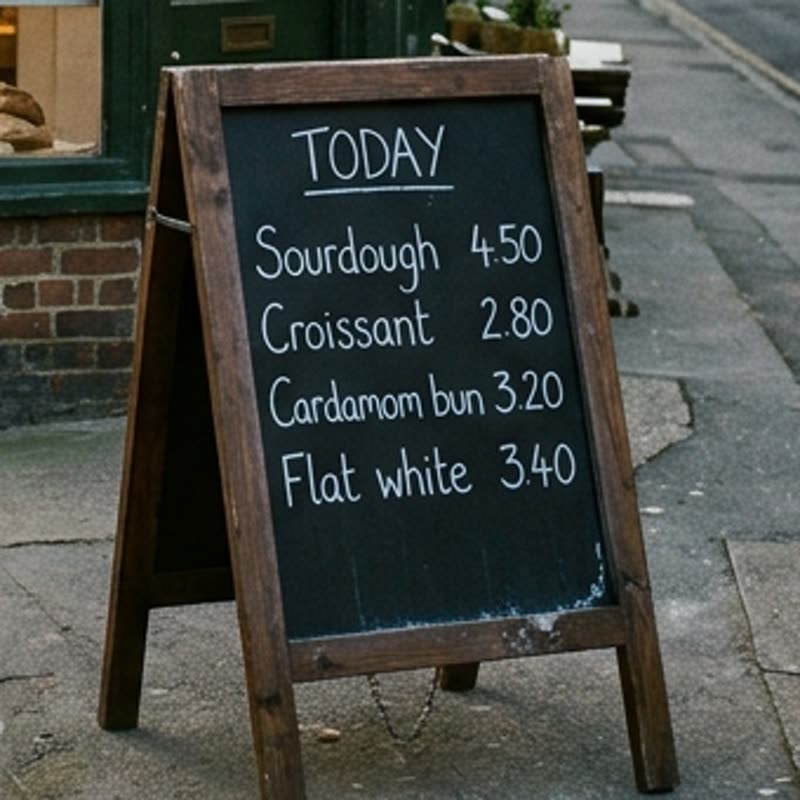 Full size
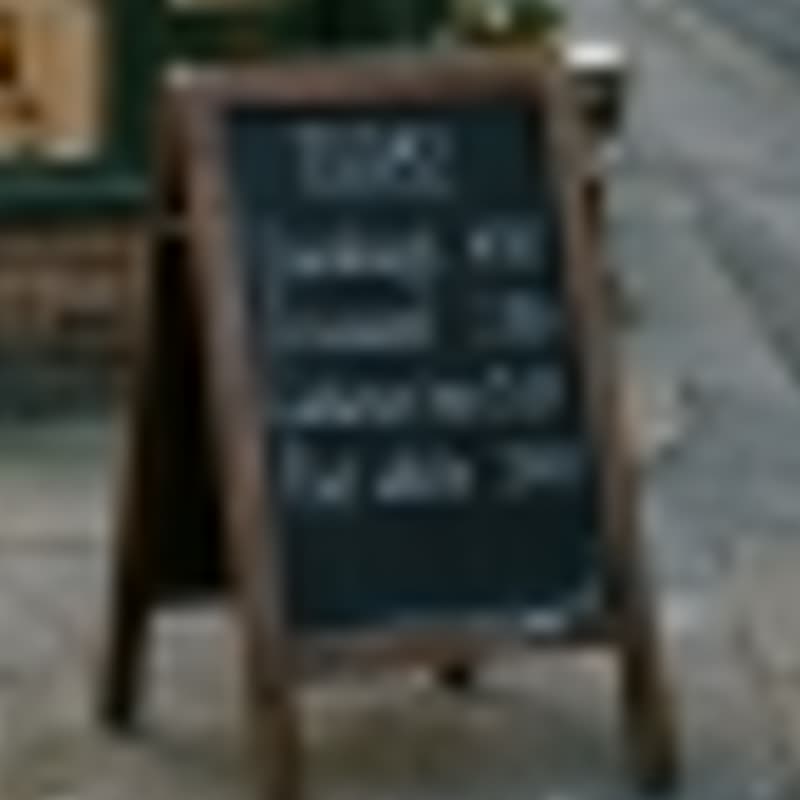 1/8, scaled back up
Left: a chalkboard from a Nano Banana 2.1 photo, cropped. Right: the same crop after shrinking the whole picture to 1/8 on each side and scaling it back up with a plain resize, to show how few pixels a small sign gets at that scale. A real decoder rebuilds detail better than a resize, but small text still suffers. Made for this guide on 31 October 2026. -
Use a model that's good at text
Newer models handle text better partly because they keep more in the squeeze: Stability's SD3 paper found that a 16-channel latent rebuilt images far better than the old 4-channel one, and reported better typography.
For text-heavy images, start with a tool that says it's built for it: Ideogram, Nano Banana (Google lists "advanced text rendering" for infographics, menus and diagrams), ChatGPT images, FLUX.2 or Midjourney V6 and later. OpenAI is honest that its model "can still struggle with precise text placement and clarity", so check every word whichever you use.
-
Write the words so the model can read them
Put the exact text in double quotes. Midjourney only treats words in double quotes as text (single quotes don't count). Ideogram renders whatever is in quotes, with your spelling and capitals.
Keep it short and put it early. Ideogram says text near the start of the prompt comes out more reliably and every extra word raises the chance of a typo. Midjourney says short words work best and recommends adding "with the words", "text" or "written".
Say where and how: placement ("centred at the top", "curving along the bottom"), the look of the lettering ("bold condensed sans", "thin script"), size ("large headline", "small subheading"). FLUX.2's guide adds hex colours for brand text, e.g. the text "ACME" in #FF5733.
Ask ClaudeRewrite this image prompt so the text renders cleanly. Tool: [TOOL]. Prompt: [PASTE]. The exact words I need: [WORDS]. Rules: put the words in double quotes near the start, keep each text block to 1 to 4 words where possible, say where each block sits and describe the lettering (weight, style, size, colour as hex). If I have more than two blocks of text, tell me which ones I should add afterwards in a design tool instead.
-
Give the letters more pixels
Make the text a bigger part of the frame. A sign filling a third of the picture survives; a label on a bottle in a wide shot won't. Crop in or change the composition before anything else.
Generate bigger. Midjourney V8.1 and later have HD images (2048 px, --hd or in settings). Nano Banana's Gemini 3 image models make 1K by default and can output 2K or 4K. OpenAI's newest image models accept custom sizes up to 3840 × 2160, with anything above 2560 × 1440 marked experimental (as of October 2026).
In Automatic1111 or Forge, turn on Hires. fix: it renders small, upscales, then adds detail in a second pass (defaults: Upscale by 2, Denoising strength 0.7). A bigger image means a bigger latent, so more cells per letter.
-
Repair just the text (or the face)
Don't regenerate the whole image to fix one word. Paint over the text area and redo only that.
Automatic1111 and Forge: in inpaint, set Inpaint area to Only masked. It enlarges just the masked area to your working resolution, redraws it, and pastes it back, so the letters get far more latent cells than they had. For faces in the distance, the ADetailer extension finds faces automatically and inpaints them the same way.
Midjourney: use the Editor on the web (Vary Region in Discord) on the text. Note that edits on HD images come back at SD size, so upscale again after. Ideogram: fix only the text in Studio with AI edit or Select area (Select area needs a paid plan).
Ask ClaudeI'm inpainting a sign in [TOOL] that should read "[WORDS]". Write the inpaint prompt for just the masked area: the exact words in double quotes, the lettering style, colour and material so it matches the rest of the image (describe what you can see in my picture), and nothing about the rest of the scene.
-
Upscale without making it worse
AI upscalers invent detail to fill new pixels, and invented detail on letters often means invented letters. Upscale text-heavy images with the creativity (or similar) setting at its lowest, compare the words before and after, and keep the version where they're still right.
-
When the words must be exact, add them yourself
For prices, dates, names, legal lines or anything longer than a short headline, generate the image without the text and add real type on top. Ideogram itself says to add long body copy later in a design tool. Real text is sharp at any size and you can fix a typo in seconds.
Ideogram's Studio can also turn existing text into editable layers with Layerize text, though it won't catch every decorative word. Otherwise use Canva, Figma, Photoshop, or ask Claude to build the overlay.
Ask ClaudeHere is my image. Build a text overlay for it as an HTML page I can download as a PNG at the image's full size: headline "[HEADLINE]", subline "[SUBLINE]", placed [WHERE], in [FONT or "a font that suits the image"], colour taken from the image, with enough contrast to read on a phone. Also give me a prompt to regenerate the image without any lettering, in case the old text is in the way.
Put it to work
-
Regenerate a clean background
If the image already has garbled text where your real text should go, regenerate or inpaint that area as empty space first, then add your type on top.
Ask ClaudeRewrite my prompt so the image has a clean, empty area for text and no lettering anywhere: [PROMPT]. Say where the empty area is (e.g. "plain sky across the top third"), and remove every word that might make the model draw text (sign, label, poster, book cover, logo).
-
Several blocks of text
Describe each block with its own words, style and position, in reading order from top to bottom (Ideogram's advice). On Ideogram 4.0 and 4.5 a JSON prompt can set each block's text, colour and bounding box, but check the result: it guides the layout without guaranteeing it.
Copy-paste prompts
A small corner café at golden hour, a hand-painted wooden sign above the door reading "MORNING RITUAL" in cream serif capitals on a dark green board, centred, large enough to fill the top third of the frame, warm natural light, simple uncluttered street.
a bold Swiss-style concert poster with the words "NIGHT SHIFT" in huge black condensed sans-serif letters across the top, a single red circle below, off-white paper texture, flat graphic design --s 50
Product flat lay of a kraft-paper coffee bag on a pale concrete surface, soft daylight from the left. The label text "HILLTOP ROAST" in bold black sans-serif, centred on the front of the bag, with the small subheading "SINGLE ORIGIN" below it in #C4572A. Nothing else written anywhere.
A chalkboard menu on a brick wall in a cosy bakery, three lines of neat white chalk lettering: "SOURDOUGH 4", "CROISSANT 3", "FLAT WHITE 3.5". Each line clearly separated, letters large and evenly spaced, the board filling most of the frame, straight-on view.
Here's an AI image where the text came out wrong. Tell me whether it's a size problem (letters too small to survive the model's compression) or a spelling problem (the model can't write these words), using what you can see. Then give me the single best fix for my tool, [TOOL], and the exact prompt or setting to try.
Rewrite this prompt so there's no text anywhere in the image and a calm empty area across the bottom third for a headline I'll add myself: [PROMPT]. Keep the subject, light and style exactly the same.
Tips
- Quote the words, keep them short, and put them early in the prompt.
- Make the text big in the frame. Small text is the first thing the squeeze destroys.
- Check every letter at 100% zoom before you post. Models are good at text that looks right at a glance.
- Inpaint the word, not the whole picture. Only masked gives the letters many more pixels to work with.
- Keep upscaler creativity low on anything with words in it.
- Prices, dates, names and long copy: add them as real text, not generated lettering.
Claude skill
Do it in one go with the fix-mushy-ai-text skill
Show Claude an image with bad text and tell it your tool. It works out whether the letters were too small or the model can't spell them, rewrites your prompt the way each tool's docs recommend, picks the right size, inpaint or upscale move, and when the words must be exact, builds a real text overlay you can download as a PNG. Includes per-tool text guidance and an overlay template.
Download fix-mushy-ai-text.zipIn Claude (web or desktop app)
- Open Settings → Capabilities and make sure code execution is on.
- Under Skills, choose Upload skill and pick the zip.
- Start a chat and describe what you are making. Claude uses the skill on its own when it fits.
In Claude Code
- Unzip it into
~/.claude/skills/(or.claude/skills/in a project). - Restart Claude Code and ask for the result. The skill loads when it fits.